Scripts & Directives
Scripts are named sequences of REPL commands stored in the session. They support variables, loops, sub-scripts, and operator interaction -- letting you automate full test sequences.
Script directives (set, array, linspace, print, pause, sleep, repeat, for, call, import, export, breakpoint, upper_limit, lower_limit) are also valid as interactive REPL commands -- you can test them at the prompt before putting them in a script. input and linspace use assignment syntax: var = input [prompt], var = linspace start stop [count].
Script Management
script new
Create a new script and open it in your editor.
Opens your system editor ($EDITOR / $VISUAL). Write one command per line. Save and close to finish.
If a script with the same name already exists, the REPL prompts for confirmation before replacing it:
eset> script new my_psu_test
Script 'my_psu_test' already exists. Overwrite and discard its contents? [y/N]:
Answering anything other than y / yes (including a blank line or Ctrl-D) leaves the original script untouched. Use script edit <name> to modify an existing script without destroying its contents.
script run
Execute a script with optional parameter overrides.
| Parameter | Required | Description |
|---|---|---|
name |
required | Script name (from script list) or a file path (absolute or relative to cwd). |
key=value |
optional | Override script variables. Replaces the default values from set lines inside the script. |
Pass a file path — with /, \, a leading ., or a .scpi extension — to run a script directly from disk without copying it to the scripts library:
script run my_psu_test                     # named script in scripts dir
script run my_psu_test voltage=3.3         # with parameter override
script run ./lab3.scpi                     # run by relative path
script run ../tests/sweep.scpi             # run by relative path
script run /home/user/projects/lab3.scpi   # run by absolute path
script run C:/projects/lab3.scpi           # Windows absolute path
script debug
Run a script in the interactive debugger — step through commands one at a time, set breakpoints, and inspect state at any point.
Accepts the same name-or-path syntax as script run. See Debugger for the full reference.
script dir
Get or set the directory where named scripts are stored for this session.
script dir           # print current scripts directory
script dir <path>    # switch to a different directory
script dir reset     # go back to the default
| Example | Effect |
|---|---|
script dir . |
Load named scripts from the current working directory |
script dir ./scripts |
Load from a scripts/ subfolder of cwd |
script dir /path/to/scripts |
Load from an absolute path |
script dir C:/Users/lab/scripts |
Windows path with forward slashes |
script dir reset |
Restore default (~/Documents/scpi-instrument-toolkit/scripts/) |
Windows paths
Forward slashes work on all platforms. Backslashes and spaces in paths are also supported without quoting:
Changing the scripts dir immediately reloads all named scripts from the new location. This is useful when your project keeps its .scpi files alongside its source code:
script dir .                # point at the project folder
script list                 # see what's available
script run lab3             # run lab3.scpi from the project folder
Note
script dir affects named scripts (used by script run <name>). To run a one-off file anywhere on disk without changing the scripts dir, use script run ./path/to/file.scpi instead.
script edit
Open an existing script in your editor.
script show
Print a script's lines to the terminal with syntax highlighting.
script list
Show all saved scripts with their line counts.
script rm
Delete a script.
script import
Load script lines from a plain-text file.
script load / save
Reload all scripts from the scripts directory, or flush all in-memory scripts back to disk.
script save    # write every in-memory script to the scripts directory as .scpi files
script load    # re-read all .scpi files from the scripts directory
Scripts are stored as individual .scpi files in the scripts directory (default: ~/Documents/scpi-instrument-toolkit/scripts/), making them easy to version-control, share, and edit with any text editor. The REPL loads them automatically at startup. Use script load if you have edited the files externally, and script save to flush any changes made in-session.
Recording Commands to a Script
record start / stop / status
Record interactive REPL commands directly into a named script without opening an editor.
record start <name>    # begin recording commands to a script
record stop            # stop recording and save
record status          # show whether recording is active and how many lines are buffered
| Parameter | Required | Description |
|---|---|---|
name |
required (start) | Name of the script to record into. Created if it does not exist; appended to if it does. |
Every command you type at the REPL prompt (except record itself) is appended to the named script in real time. The script file is saved automatically when you run record stop.
record start my_psu_test    # start recording
psu1 set 5.0
sleep 0.5
dmm1 config vdc
vout = dmm1 meas unit=V
log print
record stop                  # saves as my_psu_test.scpi in scripts dir
script run my_psu_test       # run the recorded script
Tip
Use record start as a quick way to capture a sequence you have already typed interactively, without writing a script file by hand.
Recording behavior
- Recording to an existing script appends new lines rather than overwriting.
- Nested recording is not supported —
record startwhile already recording raises an error. - Exiting the REPL while recording is active automatically saves the buffered commands.
- The
recordcommand itself is never captured; all other REPL commands are recorded.
Running External Python Scripts
python
Execute an external Python script file with full access to the REPL's live instruments, measurements, and variables.
| Parameter | Required | Description |
|---|---|---|
file.py |
required | Path to the Python script file (absolute or relative to cwd). |
Use python when you need the full Python ecosystem (NumPy, matplotlib, pandas, etc.) beyond what the SCPI script language provides, or when you want proper control flow, error handling, and data structures.
Injected globals
Your script receives these variables automatically — no imports needed:
| Variable | Type | Description |
|---|---|---|
repl |
InstrumentRepl |
The full REPL instance — run any REPL command, access context |
devices |
dict[str, Any] |
Connected instruments keyed by name ("psu", "dmm", "scope", …) |
measurements |
list[dict] |
All recorded measurement entries (list of {label, value, unit, source, time} dicts) |
ColorPrinter |
class | Colored terminal output (ColorPrinter.info(), .success(), .error(), .warning(), .header(), .cyan()) |
os |
module | os standard library module |
sys |
module | sys standard library module |
json |
module | json standard library module |
time |
module | time standard library module |
lab_instruments |
module | The lab_instruments package (for importing enums, drivers, etc.) |
Getting instruments
# By name — same names you see from 'list' in the REPL
psu = devices.get("psu") or devices.get("psu1")
dmm = devices.get("dmm") or devices.get("dmm1")
scope = devices.get("scope") or devices.get("scope1")
awg = devices.get("awg") or devices.get("awg1")

# Check before using
if not psu:
    ColorPrinter.error("No PSU found. Run 'scan' first.")
    raise SystemExit
Running REPL commands from Python
Use repl.onecmd() to execute any REPL command:
repl.onecmd("psu1 chan 1 on")
repl.onecmd("psu1 set 1 5.0")
repl.onecmd("dmm1 config vdc")
repl.onecmd('liveplot dmm_* --title "My Plot"')
REPL variables in Python scripts
All REPL script variables are automatically injected as native Python variables when you run python <file.py>. Types are auto-converted: integer strings become int, decimal strings become float, everything else stays str.
# SCPI script set these:
#   voltage = 5.0       → Python float 5.0
#   steps   = 10        → Python int 10
#   label   = vtest     → Python str "vtest"

result = voltage * 1.05        # direct float math — no float() needed
for i in range(steps):         # direct int use
    print(f"{label}: {result}")
You can also access the raw string values via the vars dict:
To write variables back to the REPL (so subsequent SCPI commands can use them):
Cross-script pattern
A single SCPI script that collects data and calls Python for analysis:
# collect.scpi
target = 5.0
tolerance = 0.05
psu1 set 1 {target}
sleep 0.3

for i 1 2 3 4 5
  reading_{i} = dmm1 meas unit=V
end

python analyze.py   # analyze.py gets target, tolerance, reading_1..5 as Python variables
# analyze.py — all REPL vars are available directly
error = abs(sum(vars[f'reading_{i}'] for i in range(1,6)) / 5 - target)
if error <= tolerance:
    ColorPrinter.success(f"PASS: error {error:.4f}V within {tolerance}V")
else:
    ColorPrinter.error(f"FAIL: error {error:.4f}V exceeds {tolerance}V")
repl.ctx.script_vars['error'] = str(round(error, 6))
Recording measurements
Record measurements so they appear in log print, live plots, and CSV exports:
# Record a measurement with label, value, unit, and source
repl.ctx.measurements.record("dmm_5.0V", 4.9987, "V", "dmm1")

# Read back recorded measurements
last = repl.ctx.measurements.get_last()           # most recent entry
entry = repl.ctx.measurements.get_by_label("dmm_5.0V")  # by label
all_entries = repl.ctx.measurements.entries         # full list
Each entry is a dict: {"label": "dmm_5.0V", "value": 4.9987, "unit": "V", "source": "dmm1", "time": 1.234}.
Using driver methods directly
Call instrument methods directly — no REPL command parsing overhead:
# PSU
psu.enable_output(True)
psu.set_output_channel(ch, 5.0, 0.5)  # channel, voltage, current_limit
v = psu.measure_voltage()
i = psu.measure_current()

# DMM
dmm.configure_dc_voltage()
v = dmm.measure_dc_voltage()
r = dmm.measure_resistance_2wire()

# AWG
awg.set_waveform(1, "SIN", frequency=1000, amplitude=2.0, offset=0)
awg.enable_output(1, True)

# Scope
scope.autoset()
freq = scope.measure_bnf(1, "FREQUENCY")
pk2pk = scope.measure_bnf(1, "PK2PK")
Starting a live plot
Start a live plot stream. The REPL emits a __LIVEPLOT__: marker line that an external GUI frontend can consume to render a live window:
# Match measurement labels by glob pattern
repl.onecmd('liveplot dmm_* --title "Voltage Sweep" --xlabel "Time (s)" --ylabel "V"')

# Then record measurements — they appear in the live stream automatically
for v in [1.0, 2.0, 3.3, 5.0]:
    psu.set_output_channel(ch, v, 0.5)
    time.sleep(0.2)
    measured = dmm.measure_dc_voltage()
    repl.ctx.measurements.record(f"dmm_{v}V", measured, "V", "dmm1")
Full example — voltage sweep with live plot
# live_sweep.py — run with: python live_sweep.py
import time

V_START, V_END, STEPS = 0.5, 12.0, 50
DELAY = 0.15

psu = devices.get("psu") or devices.get("psu1")
dmm = devices.get("dmm") or devices.get("dmm1")

if not psu or not dmm:
    ColorPrinter.error("Need PSU + DMM. Run 'scan' first.")
    raise SystemExit

# Open live plot
repl.onecmd('liveplot dmm_* --title "Voltage Sweep" --xlabel "Time (s)" --ylabel "V"')

# Build voltage steps (like linspace)
step = (V_END - V_START) / STEPS
voltages = [V_START + step * i for i in range(STEPS + 1)]

ColorPrinter.header(f"Sweeping {V_START}V -> {V_END}V in {STEPS+1} points")
psu.enable_output(True)

try:
    for target_v in voltages:
        psu.set_output_channel(1, target_v, 0.5)
        time.sleep(DELAY)
        measured = dmm.measure_dc_voltage()
        repl.ctx.measurements.record(f"dmm_{target_v:.2f}V", measured, "V", "dmm1")
        ColorPrinter.info(f"  {target_v:6.2f} V -> {measured:.4f} V")
finally:
    psu.enable_output(False)

ColorPrinter.success("Done")
Importing external libraries
Your script runs in a full Python environment. Import anything installed:
import numpy as np
import pandas as pd
import matplotlib.pyplot as plt

# NumPy linspace for sweep voltages
voltages = np.linspace(1.0, 12.0, 50)

# Collect into a DataFrame
rows = []
for v in voltages:
    psu.set_output_channel(1, float(v), 0.5)
    time.sleep(0.2)
    rows.append({"set_V": float(v), "meas_V": dmm.measure_dc_voltage()})

df = pd.DataFrame(rows)
df.to_csv("results.csv", index=False)
Script directory is on sys.path
The directory containing your .py file is temporarily added to sys.path, so you can import helper modules from the same folder.
Variables
Variables let you parameterize scripts so the same script works for different test conditions.
Defining variables
Use Python-style assignment — the same syntax you'd write in Python:
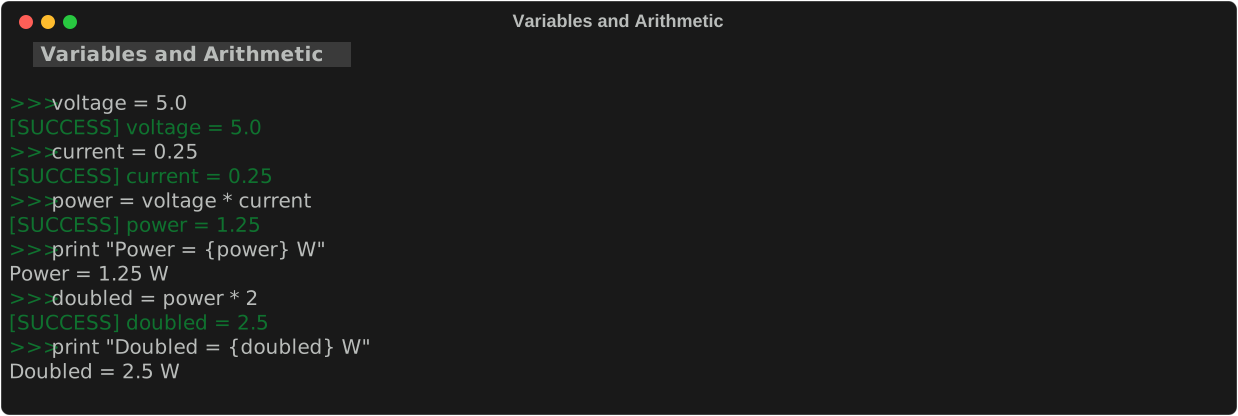
voltage = 5.0
label = vtest
doubled = voltage * 2     # arithmetic works — doubled = 10.0
offset = voltage - 0.5    # offset = 4.5
Instrument read assignment
You can read directly from an instrument into a variable:
dmm config vdc
output_v = dmm read            # reads DMM, stores in variable AND measurement log
supply_i = psu read unit=A     # optional unit= override
The result is stored in both the script variable ({output_v}) and the measurement store, so it appears in log print and log save automatically. The unit is auto-detected from the instrument's last configured mode.
Variables are evaluated at script expansion time (before execution begins), so you can use one variable in another's expression. Instrument reads are evaluated at runtime.
| Part | Description |
|---|---|
varname |
Variable name. No spaces — use underscores. |
expression |
Value, string, or arithmetic using other variable names. |
Supported operators: + - * / ** %
Supported functions: abs() min() max() round()
Compound assignment
Shorthand for updating a variable in place:
All augmented operators are supported: += -= *= /= //= **= %= |= &= ^= <<= >>=
Increment / decrement
These are expanded at script-expansion time, the same phase that handles for loop unrolling.
Expressions and boolean operators
Conditions in if, while, assert, and check support comparison and boolean operators:
| Syntax | Meaning | Notes |
|---|---|---|
and |
logical AND | short-circuits |
or |
logical OR | short-circuits |
not |
logical NOT | unary |
&& |
logical AND | alias for and — identical behavior |
\|\| |
logical OR | alias for or — identical behavior |
&& and || are rewritten to and/or before evaluation — they are 100% identical. Use whichever you prefer.
ok = voltage > 4.9 and voltage < 5.1
ok = voltage > 4.9 && voltage < 5.1    # same thing

if voltage > 0 or fallback_enabled
  print "output available"
end

if not fault_detected
  psu1 chan 1 on
end

while running && count < 100
  count++
end
All five operators work in if, while, assert, check, and pyeval.
Variable substitution
Use {varname} (f-string style) anywhere in a script line:
voltage = 5.0
label = my_run

psu1 set {voltage}               # → psu1 set 5.0
{label} = dmm1 meas unit=V   # → my_run = dmm1 meas unit=V
print "Setting {voltage}V"       # → prints  Setting 5.0V
Use {varname} syntax for variable references.
Error handling: set -e / set +e
Control whether a script stops when a command fails (like bash's set -e).
set -e    # Enable exit-on-error: stop script on first command failure
set +e    # Disable exit-on-error: continue despite errors
Example: stop on error
set -e
psu1 set 5.0           # if this fails, script stops here
dmm1 config vdc        # this won't run if PSU command failed
print "Done             # this won't run either"
Example: continue on error
set +e
psu1 set 5.0           # if this fails, continue anyway
dmm1 config vdc        # this runs regardless
print "Done             # always executes"
Tip
Use set -e for critical test sequences where a single failure should abort the entire test. Use set +e when you want to collect partial results even if some commands fail.
Python-style errors
Expression errors come back with their Python class name so students coming from Python recognize them instantly:
| Mistake | Error class |
|---|---|
calc x = undefined + 1 |
NameError |
foo = "hello"; calc x = foo + 1 |
TypeError |
calc z = 1 / 0 |
ZeroDivisionError |
calc v = xs[99] (index out of range) |
IndexError |
check with a non-numeric expected value |
ValueError |
When an expression fails, the variable is NOT created. A failed
calc result = foo + 1 leaves result untouched in script_vars. The
error sets the same flag as any other failure, so set -e aborts the
script on the offending line and set +e keeps it running.
foo = "hello"
calc x = foo + 1
# [error] TypeError: can only concatenate str (not "int") to str
#          at line 2 in my_test.scpi
#          |  calc x = foo + 1
print "x is {x}"   # prints: x is {x}  (x was never created)
Error messages include the script path, the 1-based line number, and the
exact source text of the offending command when the failure happens during
script execution. The continuation line under the location pointer
(prefixed with |) is the verbatim line from your .scpi file, so you
can spot the bad command without opening the editor. Interactive
commands typed at the prompt just show the class and message.
print stays lenient
The two contexts differ on purpose: print "hello {undef}" leaves the
placeholder in the output with no error, because print is for human
messages. Numeric expressions (calc, assert, check, if / while
conditions, compound assignment) are strict and raise NameError when
an identifier is not defined.
Migration: division by zero
Previously, 3 / 0 silently returned NaN. It now raises
ZeroDivisionError like Python. Guard a potentially-zero denominator
with if denom != 0 or wrap the section in set +e to keep going.
Overriding variables at run time
Script variables can be overridden when running the script from the command line:
# Script has:  voltage = 5.0
script run my_test voltage=3.3    # runs with voltage=3.3 instead of 5.0
script run my_test voltage=12.0 label=high_v
This is how you reuse the same script for different test conditions without editing it.
Priority order: command-line params > defaults defined in the script.
Clearing a variable: unset
Delete a previously defined variable so it can no longer be used or substituted:
voltage = 5.0
print "Voltage is {voltage}"    # prints: Voltage is 5.0
unset voltage
print "Voltage is {voltage}"    # prints: Voltage is {voltage}  (unexpanded)
This is useful in interactive sessions when you want to re-run a script with a clean variable state, or when a variable was set interactively and is no longer needed.
Scope interactions
unset only affects the current scope. In scripts, unsetting an imported variable does not modify the parent scope. Unsetting a variable that was overridden via command-line (script run my_test voltage=3.3) inside the script will cause {voltage} to remain unexpanded rather than restoring any parent or default value.
Legacy: set syntax (deprecated)
The set varname expr syntax still works but is deprecated for variable assignment:
set voltage 5.0     # ⚠️  deprecated — use: voltage = 5.0
set -e              # still valid — exit-on-error control (not deprecated)
set +e              # still valid
Use var = value for new scripts.
Measurements in scripts
Scripts use instrument read assignments and calc to take and process measurements. Results appear in the measurement log automatically.
Reading instruments into variables
Use varname = <instrument> read to take a measurement. The value is stored in both the script variable and the measurement log:
psu1 meas v
output_v = psu1 read               # measure voltage, save as "output_v"
dmm1 config vdc                     # set DMM to DC voltage mode
dmm_v = dmm1 read                   # measure DMM, save as "dmm_v"
calc error {output_v} - {dmm_v} unit=V   # subtract them
log print                           # show the full table
After running this, log print shows:
The unit is auto-detected from the instrument's last configured mode (e.g., vdc → V, idc → A). Override with unit=:
See Log & Calc for the full reference.
Using variables as dynamic labels
Since varname = <instrument> read uses the variable name as the measurement label, you can make labels dynamic by using variables in loop contexts:
dmm1 config vdc
for v 3.3 5.0 12.0
  psu1 set {v}
  sleep 0.5
  dmm_{v} = dmm1 read   # labels: dmm_3.3, dmm_5.0, dmm_12.0
end
log print    # all three rows appear in the log
A complete measurement script
# my_test — measure PSU accuracy at a target voltage
voltage = 5.0
test_name = vout_5v

print "=== Starting test: {test_name} ==="
psu1 chan 1 on
psu1 set {voltage}
sleep 0.5

psu_v = psu1 read                     # save PSU reading as "psu_v"
dmm1 config vdc                        # set DMM to DC voltage mode
dmm_v = dmm1 read                     # save DMM reading as "dmm_v"

calc error     {dmm_v} - {psu_v} unit=V
calc error_pct {error} / {psu_v} * 100 unit=%

log print
log save {test_name}.csv

psu1 chan 1 off
print "=== Done ==="
Run it with different voltages without editing the script:
script run my_test voltage=3.3 test_name=vout_3v3
script run my_test voltage=12.0 test_name=vout_12v
Output and Operator Interaction
print — display a message
Prints a message to the terminal. Use {varname} to embed variable values (Python f-string style). Quotes are optional but recommended for clarity.
voltage = 5.0
label = vtest

print "=== PSU/DMM Test ==="
print "Setting {voltage}V to {label}"
print "Test complete. Check log print for results."
print "# blank line"
Use {varname} syntax for variable references in print messages.
Use print to add section headers, progress updates, and operator instructions in your scripts.
pause — wait for operator
Stops script execution and waits for the operator to press Enter. Use for manual steps — connecting probes, changing the DUT, verifying wiring — before the script continues.
| Parameter | Required | Description |
|---|---|---|
message |
optional | Prompt shown to operator. Default: "Press Enter to continue..." |
input — prompt for a value
Prompts the operator to type a value at runtime. The entered text is stored as {varname} and substituted into all subsequent lines.
| Parameter | Required | Description |
|---|---|---|
varname |
required | Variable name. The entered value will be available as {varname} in all lines after this directive. |
prompt text |
optional | Text shown to operator. Default: the variable name. |
voltage = input Enter target voltage (V):
dut_id = input DUT serial number:
operator_name = input Operator name:
After the prompt, you can use {voltage} anywhere:
voltage = input Enter target voltage (V):
psu1 set {voltage}
print "Voltage set to {voltage}V"
dmm1 config vdc
output_{voltage} = dmm1 meas unit=V
Note
Values captured by input cannot be overridden from the command line at script run time. They are always prompted interactively.
Timing
sleep — pause inside a script
Pauses execution for the given duration. Variable substitution works:
sleep 0.5              # pause 500 ms
sleep {delay}         # pause using a variable
sleep 1.0              # wait 1 second for signal to settle
Use sleep after psu set or awg wave to let the output settle before measuring.
Loops
repeat — fixed number of repetitions
Executes the enclosed commands exactly N times.
| Parameter | Required | Description |
|---|---|---|
N |
required | Number of repetitions. Integer ≥ 1. |
for — loop over a list of values
Iterates over a whitespace-separated list of values. On each iteration, {var} is set to the next value in the list.
| Parameter | Required | Description |
|---|---|---|
var |
required | Loop variable name. Available as {var} inside the block. |
val1 val2 ... |
required | Space-separated list of values to iterate over. |
Sweep PSU through voltages:
dmm1 config vdc
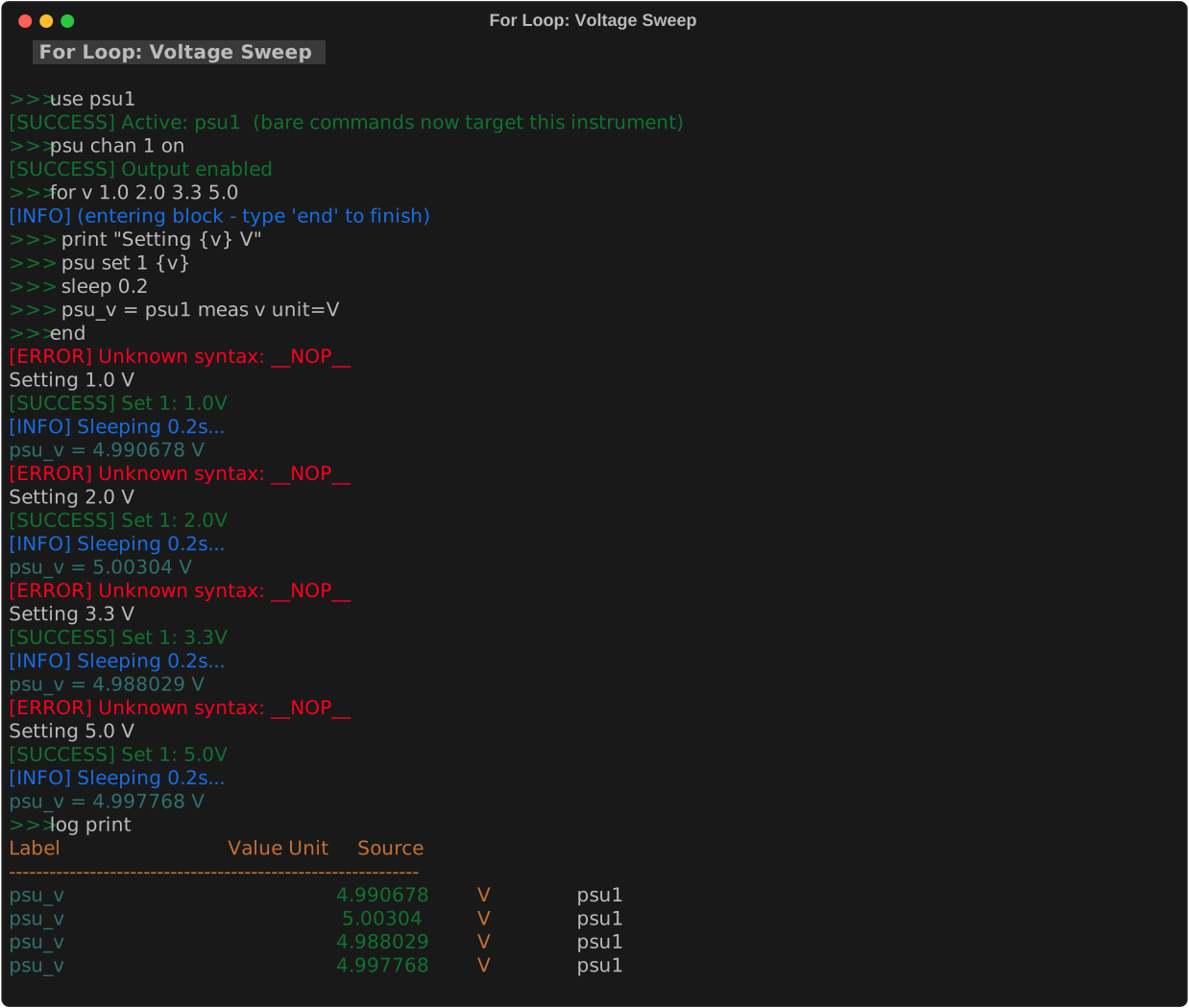
for v 1.0 2.0 3.3 5.0 9.0 12.0
  print "Setting {v}V..."
  psu1 set {v}
  sleep 0.5
  v_{v} = dmm1 meas unit=V
end
Enable each scope channel in turn:
Frequency sweep:
for f 100 500 1000 5000 10000 50000
  awg1 freq 1 {f}
  sleep 0.4
  freq_{f} = scope1 meas 1 FREQUENCY unit=Hz
  pk2pk_{f} = scope1 meas 1 PK2PK unit=V
end
Multi-variable loops
Loop over multiple variables at once by separating them with commas. Values in the list are also comma-separated:
for VIN,VSCALE,LABEL 5.0,1.0,five 3.3,0.5,three 2.5,0.5,two
  print "Testing {VIN}V with scale {VSCALE} ({LABEL})"
  psu1 set {VIN}
  sleep 0.5
end
Interactive for/repeat loops
You can enter for and repeat blocks directly in the interactive REPL. The prompt will change to show indentation, and you type end when finished:
eset> for VIN 5.0 3.3 2.5
  > print Testing VIN={VIN}
  > psu1 set {VIN}
  > sleep 0.5
  > end
Testing VIN=5.0
Testing VIN=3.3
Testing VIN=2.5
eset>
This works exactly the same as in scripts — all variable substitution and nesting work the same way.
Tip
The loop variable is substituted in all lines inside the block — including labels, print messages, and sub-command parameters.
Variable references in the value list:
Both {var} and bare variable names are accepted in the for value list. When the
iterable is a single variable holding a list (e.g. from array, linspace, or a
space-separated set), these two forms are equivalent:
array — multi-line value list
Builds a variable from a list of values, one per line. Comment out any line with # to exclude it from the list. The result is stored as a space-separated string compatible with for.
This is the preferred way to define a sweep table — it's easy to read and you can disable individual points by commenting them out.
| Parameter | Required | Description |
|---|---|---|
varname |
required | Variable name. |
| each line | — | One element per line. Lines starting with # are skipped. |
array SWEEP
  5.0,0.001,1.0
  3.3,0.001,0.5
  # 2.5,0.001,0.5   <- commented out, skipped
  1.8,0.0005,0.5
  1.5,0.0005,0.2
end

for VIN,HSCALE,VSCALE {SWEEP}
  psu set {VIN} 0.5
  scope hscale {HSCALE}
  scope vscale 1 {VSCALE} 0
end
This is equivalent to writing all values inline on the for line — but much easier to manage.
linspace — generate evenly-spaced values
Generates count evenly-spaced values from start to stop (inclusive) and stores them as a space-separated string. Default count is 11.
| Parameter | Required | Values | Description |
|---|---|---|---|
start |
required | float | First value in the range. |
stop |
required | float | Last value in the range. |
count |
optional | integer >= 2 | Number of points (default: 11). |
Voltage sweep with linspace:
VSWEEP = linspace 6 25 20
for VIN {VSWEEP}
  psu set 2 {VIN} 0.5
  sleep 0.5
  linereg_{VIN}V = smu meas v unit=V
end
The bare form for VIN VSWEEP works the same way — the loop resolves VSWEEP to its
stored list automatically.
Current sweep in mA:
ISWEEP = linspace 0 0.050 11
for I {ISWEEP}
  smu set_mode current {I} 3.0
  smu on
  sleep 0.3
  ilim_{I}A = smu meas v unit=V
  smu off
end
Use variables for start/stop:
v_start = 1.0
v_end = 12.0
RAMP = linspace {v_start} {v_end} 7
for v {RAMP}
  psu set {v}
  sleep 0.5
end
Works at the interactive REPL prompt too.
Control Flow
while — condition-based loop
Repeats the body as long as <condition> evaluates to true. There is no fixed iteration cap, but a safety limit of 10,000 iterations prevents accidental infinite loops.
Poll-until-stable pattern
delta = 999
prev = dmm1 meas unit=V
while delta > 0.001
  sleep 0.5
  curr = dmm1 meas unit=V
  delta = pyeval abs(float(vars['curr']) - float(vars['prev']))
  prev = curr
end
print "Stable at {curr}V"
if / elif / else — conditional branching
Evaluates branches top-to-bottom. The first true condition's body runs; else is the fallback. elif and else are optional.
v = psu1 meas v unit=V
if v > 5.1
  print "OVER SPEC"
elif v < 4.9
  print "UNDER SPEC"
else
  print "IN RANGE"
end
break — exit a loop early
Exits the innermost while or for loop immediately.
continue — skip to next iteration
Skips the rest of the current iteration and jumps to the next.
Interactive use
while, if, for, and repeat all work at the interactive REPL prompt. Type the header, enter commands line by line, and type end to execute:
Assertions and Checks
Two commands for validating conditions. Use assert for preconditions that must hold, and check for test steps where you want a complete results table.
assert — hard assertion (stops on failure)
If the condition is true, prints PASS. If false, prints FAIL and immediately stops the script. No further lines execute.
assert voltage > 0 "PSU must be on before measuring"
assert dmm_v > 4.9 and dmm_v < 5.1 "5V rail in spec"
Use assert for invariants and preconditions — things that must be true for the rest of the script to make sense.
check — soft test step (records and continues)
check has two forms: condition check and measurement check.
Condition check
Logs PASS/FAIL, records the result in the test report, and continues execution regardless. Use this for test steps where you want all results, even after failures.
check voltage > 4.9 "voltage lower bound"
check voltage < 5.1 "voltage upper bound"
check current < 0.6 "current limit ok"
log report    # shows PASS/FAIL summary table
Measurement check
check <label> <min> <max>          # pass if min ≤ value ≤ max
check <label> <expected> tol=<N>   # pass if |value - expected| ≤ N
check <label> <expected> tol=<N>%  # pass if |value - expected| ≤ N/100 * expected
Checks a previously recorded measurement (from log, instrument reads, etc.) against bounds or tolerance.
Interaction with set -e
assertalways stops the script on failure, regardless ofset -e.check(condition form) setscommand_had_erroron failure. Withset -eenabled, this stops the script. Withoutset -e(default), all checks run and the report shows everything.
pyeval — Python expressions in variables
Evaluate a Python expression with access to all current REPL variables, measurements, and math functions. The result is stored as a REPL variable.
Available in the expression:
| Name | Description |
|---|---|
vars |
dict of all script variables (string values) |
m |
measurement values dict (label → float) |
entries |
full measurement list |
sqrt, log, sin, cos, abs, min, max, round, pi, e |
math functions and constants |
power = pyeval float(vars['voltage']) * float(vars['current'])
rms   = pyeval sqrt(float(vars['v']) ** 2 + float(vars['i']) ** 2)
avg   = pyeval sum(e['value'] for e in entries if e['label'].startswith('reading_')) / len(entries)
Variable Scope
By default, each script runs in its own isolated variable scope. Variables defined inside a script do not leak into the REPL, and REPL variables are not automatically visible inside scripts. Use import and export to explicitly cross the boundary.
import — pull a variable from the parent scope
Copies a variable from the calling scope (REPL or parent script) into the current script's scope. If the variable does not exist in the parent scope, an error is raised.
export — push a variable back to the parent scope
When the script finishes, copies the named variable back to the calling scope (REPL or parent script). Only explicitly exported variables survive — everything else stays local.
Example: script that returns a computed value
# measure_vout — measures PSU output, exports result
VOUT = 0.0
psu_reading = psu meas v unit=V
VOUT = psu_reading
export VOUT
After script run measure_vout, {VOUT} is available in the REPL.
Sub-scripts
call — run another script inline
Executes another script as a sub-routine. The called script runs in its own variable scope. Variables from the current script can be passed as parameters.
| Parameter | Required | Description |
|---|---|---|
name |
required | Name of the script to call. |
key=value |
optional | Parameters to pass. Supports variable substitution in values. |
Example: reusable sub-script pattern
Create a script set_psu:
# set_psu — sets PSU to a voltage and verifies
# Params: voltage, label
voltage = 5.0
label = psu_out

psu1 chan 1 on
psu1 set {voltage}
sleep 0.5
{label} = psu1 meas v unit=V
Call it from another script:
# main test
dmm1 config vdc
for v 3.3 5.0 12.0
  call set_psu voltage={v} label=psu_{v}
  dmm_{v} = dmm1 meas unit=V
end
log print
Note
Parameters passed via call override set defaults in the called script — same priority rules as script run.
Safety Limits
Safety limits guard your DUT against accidental over-voltage, over-current, or out-of-range signals. Set them at the top of a script and every subsequent instrument command is checked against them automatically.
| Part | Meaning |
|---|---|
device |
Device type (psu, awg) or specific name (psu1, awg2, …) |
chan N |
Optional. Restrict to channel N only; omit to apply to all channels |
param |
What to bound — see table below |
value |
Numeric limit (inclusive) |
Valid parameters
| Device | Param | Physical meaning |
|---|---|---|
psu |
voltage |
Output voltage |
psu |
current |
Current-limit setting |
awg |
voltage |
Smart alias — direction determines which bound (see below) |
awg |
vpeak |
Peak voltage = offset + vpp/2 |
awg |
vtrough |
Trough voltage = offset − vpp/2 |
awg |
vpp |
Peak-to-peak amplitude |
awg |
freq |
Frequency (Hz) |
AWG voltage alias
voltage is a convenient shorthand for AWG limits that mirrors PSU syntax:
| Command | Resolves to | Stored as |
|---|---|---|
upper_limit awg voltage 5.0 |
vpeak cap | vpeak_upper = 5.0 |
lower_limit awg voltage -0.3 |
vtrough floor | vtrough_lower = -0.3 |
The direction (upper/lower) determines whether the alias maps to the peak or the trough. Use vpeak/vtrough directly if you need an upper floor on the trough or a lower ceiling on the peak.
Hierarchy — tightest bound wins
Multiple limits can coexist. When a command is issued to psu1 channel 1, the engine checks all four scopes and applies the tightest (most restrictive) value per parameter:
1. ("psu1", 1)    — named device, specific channel  (most specific)
2. ("psu1", None) — named device, any channel
3. ("psu",  1)    — device type, specific channel
4. ("psu",  None) — device type, any channel        (least specific)
Retroactive check
When you set a limit at the interactive prompt, the REPL immediately checks all known instrument states against the new guard and prints a [WARNING] for any existing violations. The instrument state is not changed — the warning is advisory only.
eset> upper_limit psu voltage 1
[SUCCESS] Limit set: upper_limit psu voltage 1
[WARNING] Retroactive: psu1 setpoint 5.0V already exceeds limit 1.0V — consider reducing output
Note
Retroactive checks use the last known setpoint value, not a live query. AWG frequency is not tracked in session state and cannot be retroactively checked — a separate warning is emitted if a frequency limit is set.
Examples
# TPS22968 DUT: abs min −0.3 V, preferred max 5 V
upper_limit awg voltage 5.0     # AWG peak ≤ 5 V  (voltage alias → vpeak)
lower_limit awg voltage -0.3    # AWG trough ≥ −0.3 V  (voltage alias → vtrough)
upper_limit psu voltage 5.0     # PSU output ≤ 5 V

# Multi-channel PSU: ch1 holds a 1.8 V DUT, ch2 is a 5 V rail
upper_limit psu chan 1 voltage 2.1   # ch1 ≤ 2.1 V
upper_limit psu chan 2 voltage 5.5   # ch2 ≤ 5.5 V
upper_limit psu current 1.0          # all channels: I ≤ 1.0 A

# Named PSU — only psu1 is affected
upper_limit psu1 chan 1 voltage 3.3
upper_limit psu2 voltage 12.0

# Explicit AWG peak/trough params (equivalent to the voltage alias above)
upper_limit awg vpeak 5.0
lower_limit awg vtrough -0.3
Note
Limits are cleared automatically at the start of each top-level script run. Place them at the top of every script that needs them.
Tip
upper_limit and lower_limit work at the interactive REPL prompt too — set them before issuing manual commands to protect your DUT during hands-on testing. After each limit is set, the REPL retroactively checks current instrument state and warns of any existing violations.
Comments
Lines beginning with # are ignored during execution.
Use comments liberally to document what each section does, expected values, and any hardware setup required.
Debugger
The script debugger lets you step through a script one command at a time, set breakpoints, jump around, and run live REPL commands while paused. Because all loops and variables are fully expanded before the debugger starts, every iteration of a for loop appears as a separate numbered line — you can set a breakpoint on exactly the one point you care about.
Starting the debugger
In-script breakpoints
Add breakpoint anywhere in a script file to automatically pause there, even when running with script run:
Debugger display
When paused, the debugger shows a context window around the current line. The current line is highlighted in cyan. Lines with breakpoints are marked with ●:
  ────────────────────────────────────────────────────────────
      12     psu chan off
      13     sleep 0.5
  →   14     psu set 5.0 0.5
  ●   15     psu chan on
      16     sleep 0.3
  ────────────────────────────────────────────────────────────
  14/42  │  n=step  c=continue  back  goto N  b N=break  d N=del  l=list  q=quit

(dbg) _
Debugger commands
| Command | Action |
|---|---|
Enter / n |
Execute the current line and advance to the next |
c |
Continue running until the next breakpoint or end of script |
back |
Move pointer back one line without executing — lets you re-run a command |
goto N |
Jump the pointer to line N — lines in between are not executed or reversed |
b N |
Set a breakpoint at line N |
d N |
Delete the breakpoint at line N |
l |
Show a wider context window (±8 lines) |
info |
Show current line number and all active breakpoints |
q |
Abort the script and return to the REPL |
| any command | Type any REPL command (e.g. psu meas v, scope meas 1 FREQ) to run it live |
Note
back moves the execution pointer but does not reverse any instrument state. Use it when you want to re-execute a command, not to undo it.
Tip
Because the full script is expanded before the debugger starts, line numbers are stable for the entire session. A for loop with 7 iterations appears as 7×N separate lines — you can set a breakpoint at exactly the iteration you want to inspect.
Complete Example
A script combining all features:
# full_test.repl
# Full voltage characterization test
# Params: dut_name, v_min, v_max, steps

# ── Defaults ────────────────────────────────
dut_name = my_dut
v_min = 1.0
v_max = 5.0
steps = 5
delay = 0.5

# ── Operator setup ───────────────────────────
print "=== Voltage Characterization Test ==="
print "DUT: {dut_name}"
pause Connect DUT and DMM probes, then press Enter

# ── Optional runtime input ────────────────────
operator = input Operator initials:

# ── PSU on ───────────────────────────────────
psu1 chan 1 on
print "PSU enabled"
dmm1 config vdc

# ── Sweep ────────────────────────────────────
for v 1.0 2.0 3.3 5.0 9.0 12.0
  print "Testing {v}V..."
  psu1 set {v}
  sleep {delay}
  psu_{v} = psu1 meas v unit=V
  dmm_{v} = dmm1 meas unit=V
  calc err_{v} (dmm_{v} - psu_{v}) / psu_{v} * 100 unit=%
end

# ── Results ────────────────────────────────────
print "=== Test complete ==="
log print
log save {dut_name}_results.csv

# ── Safe state ────────────────────────────────
psu1 chan 1 off
print "PSU off — done"
Run it: