Log & Calc
Looking for Python-API logging? This page documents the REPL
logcommand (the measurement log). To silence or enable the library's own log output (Sent command: ...,Connected to ..., etc.) from Python code, see Controlling library log output.
The measurement log -- what it is and why you need it
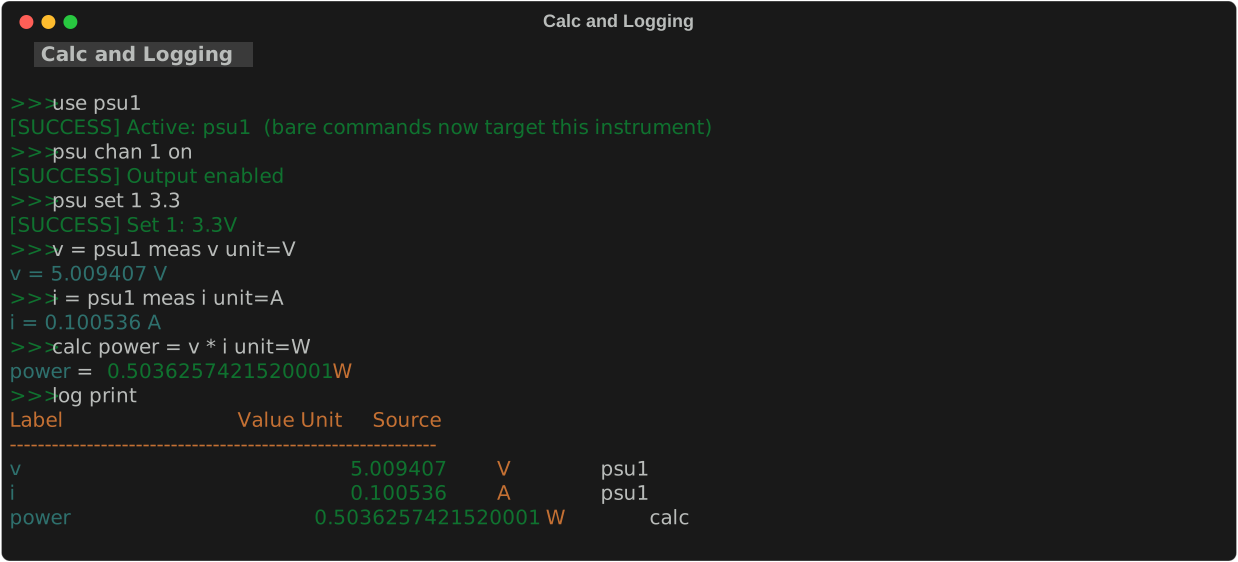
Every time you use the assignment syntax (label = instrument meas ...), the REPL saves the result to a persistent measurement log — a table that accumulates all your readings for the current session.
┌─────────────────────────────────────────────────────────┐
│  output_v = psu meas v unit=V                           │
│       │               │                                 │
│       │               └─ what to measure (voltage)      │
│       │                                                 │
│       └─ label: the name you choose                     │
│           for this row in the table                     │
└─────────────────────────────────────────────────────────┘
After recording a few measurements, the log looks like:
Label       Value       Unit   Source
output_v    4.9987      V      psu.meas
dmm_v       4.9992      V      dmm.read
freq_ch1    999.87      Hz     scope.meas.FREQUENCY
log print shows it. log save results.csv exports it. calc does math on the values.
What is a label?
A label is the name you give a stored measurement — the row key in the table above.
Rules:
- No spaces — use underscores:
output_v,ch1_pk2pk,r_load - Must be unique per session — storing twice with the same label overwrites the earlier value
- You reference it in
calcby bare name (e.g.output_v)
Why labels matter: without a name, you can't retrieve the value later. psu meas v just prints to the screen and is gone. output_v = psu meas v saves it so you can compute calc error output_v - 5.0 afterwards.
# meas = print only (nothing saved):
psu meas v          # prints 4.9987, then forgotten

# assignment syntax = save with a name:
output_v = psu meas v unit=V    # saves 4.9987 as "output_v"
calc error output_v - 5.0           # retrieves it: 4.9987 - 5.0 = -0.0013
log print                            # shows the full table
log print
Display all recorded measurements in the terminal.
Prints a formatted table with columns: Label | Value | Unit | Source.
Run this at the end of a test sequence to review all results.
log save
Export the measurement log to a file.
| Parameter | Required | Values | Description |
|---|---|---|---|
filename |
required | file path | Output file path. |
csv\|txt |
optional | csv, txt |
Format. Defaults to csv if the filename ends in .csv, otherwise txt. |
log save results.csv              # CSV format (opens in Excel)
log save results.txt              # formatted text table
log save ../results/data.csv      # relative path from script dir
Path resolution
Relative paths are resolved from the script directory when running inside a script, or the data directory when used interactively. Use absolute paths to override.
CSV files can be opened directly in Excel or imported into Python with pandas.
log clear
Remove all measurements from the log.
Use this before starting a new test sequence to ensure only the new results are saved.
calc
Compute a derived value and add it to the log. There are two equivalent forms:
# Preferred — plain assignment with optional unit=
<label> = <expression> [unit=<str>]

# Alternative — explicit calc keyword
calc <label> = <expression> [unit=<str>]
| Parameter | Required | Values | Description |
|---|---|---|---|
label |
required | string, no spaces | Name for the computed result. Stored in both the measurement log and as a script variable. |
expression |
required | Python arithmetic | Math expression using bare variable/label names. |
unit= |
optional | string | Unit label shown in log print. Display-only. |
Both forms are functionally identical. The plain assignment form is preferred because it reads naturally:
Accessing stored measurements
Reference any previously stored value by its bare label name:
Script variables assigned with = are also available by name:
Use last to reference the most recently stored value:
Available functions and constants
| Name | Description |
|---|---|
<label> |
Bare label name — accesses any script variable or stored measurement |
last |
The most recently stored value |
abs(x) |
Absolute value |
min(a, b) |
Minimum of two values |
max(a, b) |
Maximum of two values |
round(x, n) |
Round to n decimal places |
pi |
π (3.14159...) |
e |
Euler's number (2.71828...) |
sqrt(x) |
Square root |
log(x) |
Natural logarithm |
log2(x) |
Base-2 logarithm |
log10(x) |
Base-10 logarithm |
exp(x) |
e^x |
floor(x) |
Floor |
ceil(x) |
Ceiling |
sin(x) / cos(x) / tan(x) |
Trigonometry (radians) |
is_nan(x) / is_inf(x) / is_finite(x) |
NaN/infinity checks |
int(x) / float(x) / str(x) |
Type conversions |
hex(x) / bin(x) / oct(x) |
Base conversions |
Chained calculations
The result of calc is stored in both the log and script variables, so you can chain calculations:
v_in = psu1 meas v unit=V
i_in = psu1 meas i unit=A
dmm1 config vdc
v_out = dmm1 meas unit=V

calc power_in  v_in * i_in unit=W
calc power_out v_out * i_in unit=W      # assume same current
calc efficiency power_out / power_in * 100 unit=%
Examples
Compute percentage error:
Voltage ratio (gain):
v_in = scope1 meas 1 PK2PK unit=V
v_out = scope1 meas 2 PK2PK unit=V
calc gain v_out / v_in
calc gain_db 20 * log10(gain) unit=dB
Resistance from V and I:
v_supply = psu1 meas v unit=V
dmm1 config idc
i_load = dmm1 meas unit=A
calc resistance v_supply / i_load unit=Ω
Crest factor:
pk2pk = scope1 meas 1 PK2PK unit=V
rms = scope1 meas 1 RMS unit=V
calc crest_factor pk2pk / (2 * rms)
check
Assert that a stored measurement falls within acceptable limits. Appends a pass/fail result to the test report.
| Parameter | Required | Description |
|---|---|---|
label |
required | Label of a stored measurement (must exist in the log). |
min / max |
required (range form) | Inclusive lower and upper bounds. |
expected + tol= |
required (tolerance form) | Center value and absolute tolerance. |
tol=<N>% |
optional | Percentage tolerance: pass if \|value − expected\| ≤ N/100 × expected. |
Prints [PASS] or [FAIL] with the measured value and limits. A failed check sets an error flag — scripts with set -e will stop on failure.
dmm1 config vdc
vout = dmm1 meas unit=V

check vout 4.75 5.25          # pass if 4.75 V ≤ vout ≤ 5.25 V
check vout 5.0 tol=0.25       # pass if |vout − 5.0| ≤ 0.25 V
check vout 5.0 tol=5%         # pass if within 5% of 5.0 V
Results are collected in memory and shown with report print or exported with report save.
report
View or export a lab test report containing all check pass/fail results.
| Subcommand | Description |
|---|---|
print |
Print the check results table to the terminal |
save <path> |
Generate a PDF report at the given path |
clear |
Clear test results and the screenshot list |
title <text> |
Set the report title shown in the PDF header |
operator <name> |
Set the operator name shown in the report header |
report title "PSU Accuracy Test"
report operator "J. Smith"

# ... run checks ...

report print              # view results in terminal
report save results.pdf   # export PDF
Note
report save requires fpdf2: pip install fpdf2
data dir — controlling where files are saved
By default, screenshots, waveform CSVs, and log save files all land in ~/Documents/scpi-instrument-toolkit/data/. Use data dir to point them anywhere you want for the current session.
data dir <path>    # set output directory (absolute or relative to cwd)
data dir           # print the current output directory
data dir reset     # go back to the default
| Example | Effect |
|---|---|
data dir . |
Save files in the current working directory |
data dir ./lab3 |
Save files in a lab3/ subfolder of cwd |
data dir /mnt/usb/captures |
Save to an absolute path |
data dir C:/Users/lab/output |
Windows path with forward slashes |
data dir reset |
Restore default (~/Documents/scpi-instrument-toolkit/data/) |
Windows paths
Forward slashes work on all platforms. Backslashes and spaces in paths are also supported without quoting:
The setting applies to every save command in the session — scope screenshot, scope save, and log save all respect it. Subdirectories within the output dir are still created automatically (e.g. scope screenshot lab3/cap.png → <data_dir>/lab3/cap.png).
You can also use it inside a .scpi script so the output location is part of the test setup:
# lab3.scpi
data dir .     # save everything relative to where I launched the REPL

log clear
for VIN {SWEEP}
  ...
  scope screenshot cap_{VIN}V.png
  scope save 1,2,3,4 wave_{VIN}V.csv
end
log save results.csv
Note
data dir only affects the current REPL session. For a permanent default, set the SCPI_DATA_DIR environment variable before launching the REPL — it takes effect whenever data dir has not been set.
Typical workflow
# 1. Clear previous results
log clear

# 2. Run measurements
psu1 chan 1 on
psu1 set 5.0
sleep 0.5

psu_v = psu1 meas v unit=V     # save as "psu_v"
psu_i = psu1 meas i unit=A     # save as "psu_i"
dmm1 config vdc
dmm_v = dmm1 meas unit=V       # save as "dmm_v"

# 3. Derive values
calc power       psu_v * psu_i unit=W
calc v_error     dmm_v - psu_v unit=V
calc v_error_pct v_error / psu_v * 100 unit=%

# 4. Review and export
log print
log save results.csv