SCPI Instrument Toolkit
Python REPL for controlling lab instruments — oscilloscopes, power supplies, multimeters, and function generators — over VISA (USB, GPIB, Serial).
What can I do with this toolkit?
- Drive a full bench from one prompt -- PSUs, DMMs, scopes, AWGs, SMUs, and the TI EV2300 USB-to-I2C adapter, all from the same REPL. See Supported Instruments.
- Run measurement scripts --
for/while/if, variables,assert/check, parameter overrides, and a step debugger. See Scripting. - Practice without hardware -- 14 simulated instruments via
--mock. See Mock Mode. - Log measurements and export to CSV -- assign-style measurement syntax,
calcfor derived values,log saveto CSV. See Log & Calc. - Plot live or after the fact -- live plotting during sweeps, static plots from saved CSVs, ready for pandas/matplotlib analysis. See Plotting.
- Reuse 15+ bundled examples -- PSU+DMM sweeps, scope captures, full lab-report workflows. See Examples.
Learning path
Quick Start
1. Install
Requires NI-VISA for USB and GPIB instruments.
2. Launch
scpi-repl           # auto-discovers connected instruments
scpi-repl --mock    # simulate instruments (no hardware needed)
scpi-repl not recognized?
Run python -m lab_instruments once. On standard Windows the toolkit will automatically add the Scripts folder to your PATH — open a new terminal and scpi-repl will work.
On managed machines (TAMU VOAL and similar) where registry edits are blocked, use the module form as your permanent launch method:
See Troubleshooting for a session-only PATH fix and other tips.One connection at a time
Instrument connections are exclusive. Only one program can hold the connection to a device at a time.
- You cannot run the REPL and a Python script against the same instrument simultaneously.
- You cannot have the REPL or a Python script connected while BQStudio (or any other vendor software) is open and using that instrument.
Close one program before opening the other. If you get a "resource busy" or "cannot open" error, check that no other terminal, script, or vendor tool is already connected.
3. Find your instruments
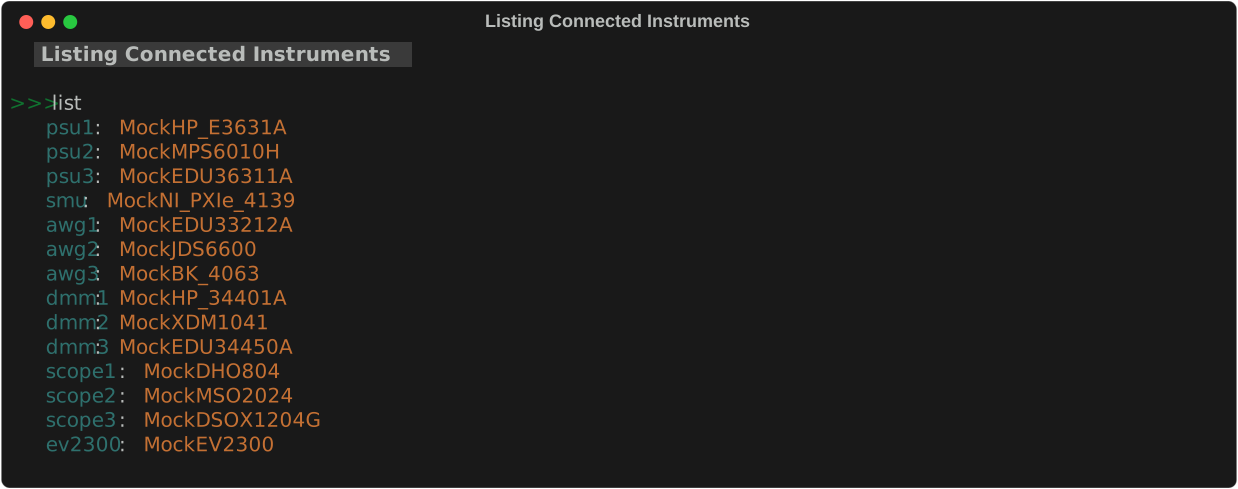
list          # show all connected instruments and their names
scan          # re-scan if you plugged something in after launch
Instruments are assigned names automatically based on type: psu1, psu2, dmm1, scope1, awg1, etc.
4. Control an instrument
use psu1          # set psu1 as the active power supply
psu chan 1 on     # enable output
psu set 5.0 0.5   # set 5 V, 0.5 A current limit
psu meas v        # measure output voltage
5. Log results and export
The assignment syntax (label = instrument meas ...) saves a reading to the log with a label (name you choose). calc retrieves it by that label. log print shows the table. log save exports it.
output = psu meas v unit=V         # save voltage — label is "output"
dmm config vdc                     # set DMM to DC voltage mode
dmm_v = dmm meas unit=V            # save DMM reading — label is "dmm_v"
calc error dmm_v - output unit=V   # reference labels in math
log print                           # show the full results table
log save results.csv                # export to CSV
See Log & Calc for the full explanation of labels, calc, and export.
Addressing multiple instruments
When you have more than one instrument of the same type, they are numbered:
You can address them directly by prefixing any command:
psu1 set 5.0      # set psu1 without changing the active selection
psu2 set 12.0     # set psu2 at the same time
Or switch the active instrument with use:
Getting help
help              # list all commands
help psu          # inline help for a specific command
docs              # open this documentation in your browser
examples          # list bundled example scripts
What's in the docs
| Page | What it covers |
|---|---|
| Python API | Control instruments from Python — autodiscovery, enums, direct instantiation |
| General Commands | scan, force_scan, list, use, idn, raw, state, sleep, reload |
| PSU | Power supply control and measurement |
| AWG | Function generator — waveforms, frequency, amplitude |
| DMM | Multimeter — measurement modes, logging |
| Scope | Oscilloscope — channels, triggers, measurements, waveform capture |
| SMU | Source measure unit — voltage/current sourcing and measurement |
| EV2300 | USB-to-I2C adapter — SMBus register read/write, scan, probe |
| Scripting | Scripts, variables, loops, directives — full reference |
| Examples | Bundled example workflows with explanations |
| Log & Calc | Measurement log, CSV export, derived calculations |
| Plotting | Static plots, live plots, interactive charts, data selection, detail view |
| Instruments | Supported models and connection setup |
| LabVIEW Bridge | Calling instrument drivers from LabVIEW Python Nodes |
| Troubleshooting | PATH issues, NI-VISA errors, managed machine workarounds |